How to Setup Firestick Without Remote
Introduction
Setting up your Firestick without a remote doesn’t have to be a frustrating experience. With the right tools and a bit of guidance, you can unlock your streaming capabilities quickly and efficiently. Whether your remote is missing or broken, there are several alternative methods to get your Firestick up and running without interruption. By using the Amazon Fire TV app along with other available technologies like HDMI-CEC, you’ll be able to take full control of your streaming setup. In this guide, we’ll walk you through the process step by step, ensuring you enjoy your favorite content without delay.
Understanding the Firestick Setup Process
Traditionally, setting up a Firestick involves connecting it to your TV and using a standard remote to guide you through the initial setup steps. This includes connecting to Wi-Fi, logging into your Amazon account, and customizing your settings for optimal performance. However, what happens when your remote is unavailable? Understanding this fundamental process highlights the key points where you can introduce alternative solutions—ensuring you won’t miss a beat.
Using the Amazon Fire TV App for Setup
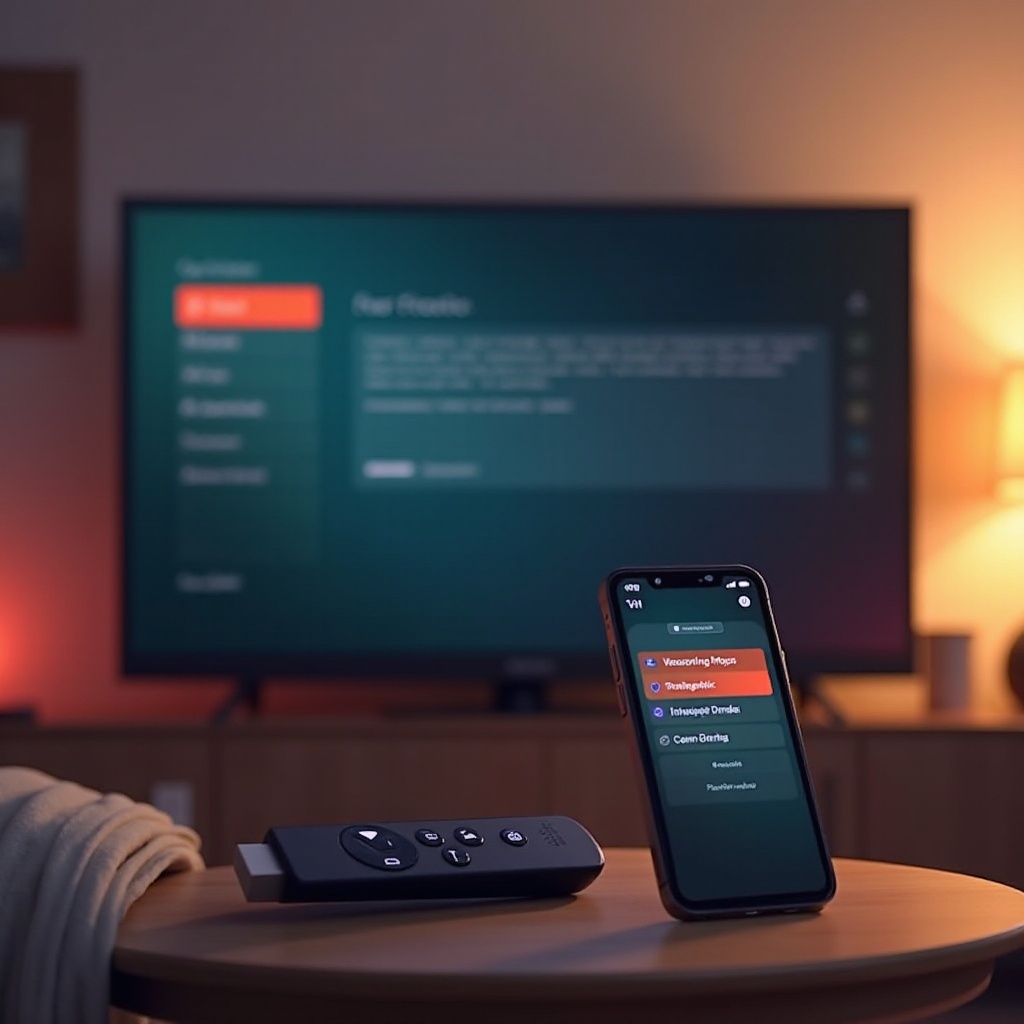
The Amazon Fire TV app is a valuable resource when your remote is not an option. By turning your smartphone into a virtual remote, you can seamlessly control your Firestick.
-
Downloading and Installing the App: Locate the Amazon Fire TV app in your smartphone’s app store—Google Play Store for Android users or the Apple App Store for those with iOS. Once found, download and install the app. Ensure your smartphone shares the same Wi-Fi network as your Firestick for a successful connection.
-
Connecting to Wi-Fi Using the App: After launching the app, select your Firestick device. Initially, signing into your Amazon account may be required for authorization. Once the device is connected, navigate through the settings using your smartphone to link your Firestick to your Wi-Fi. Enter your Wi-Fi password and confirm the setup to access your Amazon account preferences and connect streaming services.
The design of the Fire TV app mimics the interface of a traditional remote, making it intuitive for users new to this setup method and offering a straightforward experience.
Exploring Alternative Control Options
Beyond the Amazon Fire TV app, other methods can enhance the management of your Firestick without reliance on the original remote.
-
Using an HDMI-CEC Compatible TV Remote: Some TVs support HDMI-CEC, a feature that enables you to control connected devices like the Firestick using your TV’s remote control. To take advantage of HDMI-CEC, ensure this feature is activated in your TV settings. With this enabled, your TV remote can navigate your Firestick, providing a practical and efficient method of control.
-
Pairing a Bluetooth Keyboard or Mouse: To further expand your control options, Bluetooth keyboards or mice can be paired with your Firestick. In the Fire TV app, access the ‘Settings’, then ‘Controllers and Bluetooth Devices’, and select ‘Other Bluetooth Devices’ to initiate pairing. This method is particularly useful for those who prefer physical keyboards for quicker navigation and text input.
These alternative control options provide flexibility, particularly for users who seek diverse methods of interaction with their Firestick devices.
Troubleshooting Common Setup Issues
Occasionally, you might encounter challenges during setup without a remote. Here’s how to address some of these common issues:
-
The App Cannot Find the Firestick: Ensure both your Firestick and smartphone are on the same Wi-Fi network, which is crucial for connectivity. If issues persist, restart your device and relaunch the app.
-
Bluetooth Devices Aren’t Pairing: Confirm that the Bluetooth device is working properly, in pairing mode, and within the immediate vicinity of the Firestick.
-
Poor Wi-Fi Connection: Check your Wi-Fi for intermittent disconnections. If necessary, reposition your router closer to your Firestick to strengthen the signal, or perform a reset to rectify network connectivity issues.
These troubleshooting tips are designed to identify and resolve stumbling blocks during setup, ensuring a smooth process.
Tips for Optimizing Your Firestick Usage Without a Remote
Once you have successfully set up your Firestick, consider the following tips for an enhanced user experience:
-
Keep your Firestick updated by checking for and installing the latest software updates, which can improve functionality and feature access.
-
Integrate voice control using Alexa-enabled devices to offer voice command capabilities for your Firestick, providing a touch-free navigation experience.
-
Organize and manage your streaming applications for quick and easy access to favorite services, creating a personalized user interface for your needs.
Employing these strategies ensures your Firestick remains effective and enjoyable for long-term use.
Conclusion
Setting up your Firestick without a remote is achievable through the help of the Amazon Fire TV app and other control methods. With patience and the directions provided in this guide, your Firestick can be set up and ready for streaming without the wait. Explore the different features and tips highlighted here to enhance your viewing experience and continue enjoying all that your Firestick has to offer.
Frequently Asked Questions
What should I do if the app cannot find my Firestick?
Ensure both devices are on the same Wi-Fi network. Restart your phone and relaunch the app to reset the connection.
Can I use my smartphone as a permanent remote replacement?
Yes, many users find the Amazon Fire TV app effective for long-term use instead of a traditional remote.
Is there a way to reset my Firestick without a remote?
Yes, you can perform a reset through the settings accessed via the Fire TV app’s remote feature. Navigate to ‘Settings,’ ‘My Fire TV,’ and select ‘Reset to Factory Defaults.’