Troubleshooting: Why Your Apple Watch Didn’t Record Your Workout and How to Fix It
Introduction
The Apple Watch is a trusted companion for fitness enthusiasts, offering impressive tracking capabilities to help achieve health goals. However, when workouts go unrecorded, it can disrupt these efforts. Understanding why this happens and how to fix it is vital for maintaining your exercise routine consistency. This guide dissects common reasons your Apple Watch might miss recording your workouts and offers practical solutions to ensure every move is captured.

Common Reasons Your Apple Watch May Not Record a Workout
Various issues can prevent your Apple Watch from tracking workouts. Identifying these helps in solving the problem effectively.
- Low Battery Issues: A low battery can prevent your Apple Watch from fully operationalizing its tracking features. Ensuring your watch is adequately charged before starting your workout is crucial.
- Incorrect Settings: Wrongly configured settings can lead to missed data. It’s important to verify that Workout Mode is active and your workout preferences are set correctly.
- Outdated Software: Not keeping your watchOS updated can result in glitches, including workout tracking issues. Regular updates are integral to maintaining optimal device performance.
By recognizing these basic causes, you set the stage for making meaningful adjustments in your workout routine.
How to Ensure Your Apple Watch Records Every Workout
Optimizing your Apple Watch settings is central to reliable fitness tracking. Here are steps to ensure every workout is recorded accurately.
- Check and Update Software: Regularly update both your Apple Watch and connected iPhone. Updates often include bug fixes and enhancements which improve overall performance.
- Proper Setup of Workout Modes: Verifying the workout app’s settings can eliminate issues. Select the appropriate workout type and ensure it’s correctly configured before starting your session.
- Ensure Adequate Battery Life: Starting a workout with a low battery is risky. Charge your device regularly and consider a portable charger for on-the-go power.
These steps ensure your Apple Watch is prepared for any workout, minimizing the risk of unrecorded sessions.
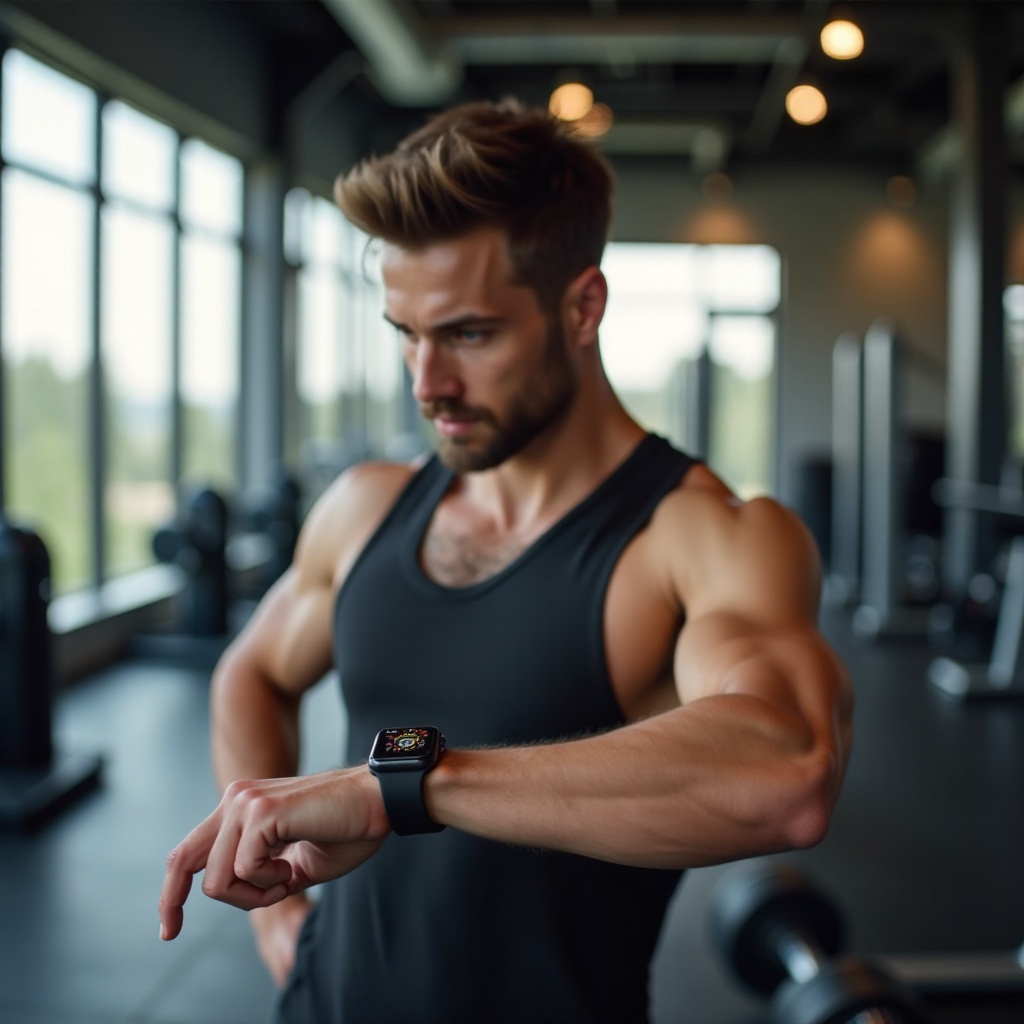
Practical Steps to Resolve Recording Issues
When initial adjustments don’t solve the problem, more detailed troubleshooting steps could help.
- Restart Your Apple Watch: Minor software glitches might be resolved by restarting the device. Turn it off, wait a few seconds, then turn it back on.
- Calibrate Your Apple Watch: Calibration enhances sensor accuracy. Conduct an outdoor walking workout for about 20 minutes to adjust the device’s motion sensors.
- Unpair and Repair Your Apple Watch: If recording problems persist, unpairing and then repairing your Apple Watch with your iPhone might resolve software issues without data loss.
Each of these methods targets specific problems that can interrupt workout recording. After trying these, you can further improve workout tracking precision.
Tips for Maximizing Workout Tracking Accuracy
Enhancing the accuracy of your workout data involves adopting beneficial habits.
- Ensure a Snug Fit: For accurate data, your Apple Watch should fit snugly on your wrist. Adjust your watch band before exercise to ensure stability.
- Use Manual Start and Stop: Automatically detected workouts can sometimes misfire. Manually starting and stopping workouts guarantees accurate recording.
- Regular Software Updates: Regular updates allow your Apple Watch to perform optimally and include new features for better functionality.
Implementing these practices helps in obtaining precise workout metrics, and when combined with the following resources, you can further optimize your tracking experience.
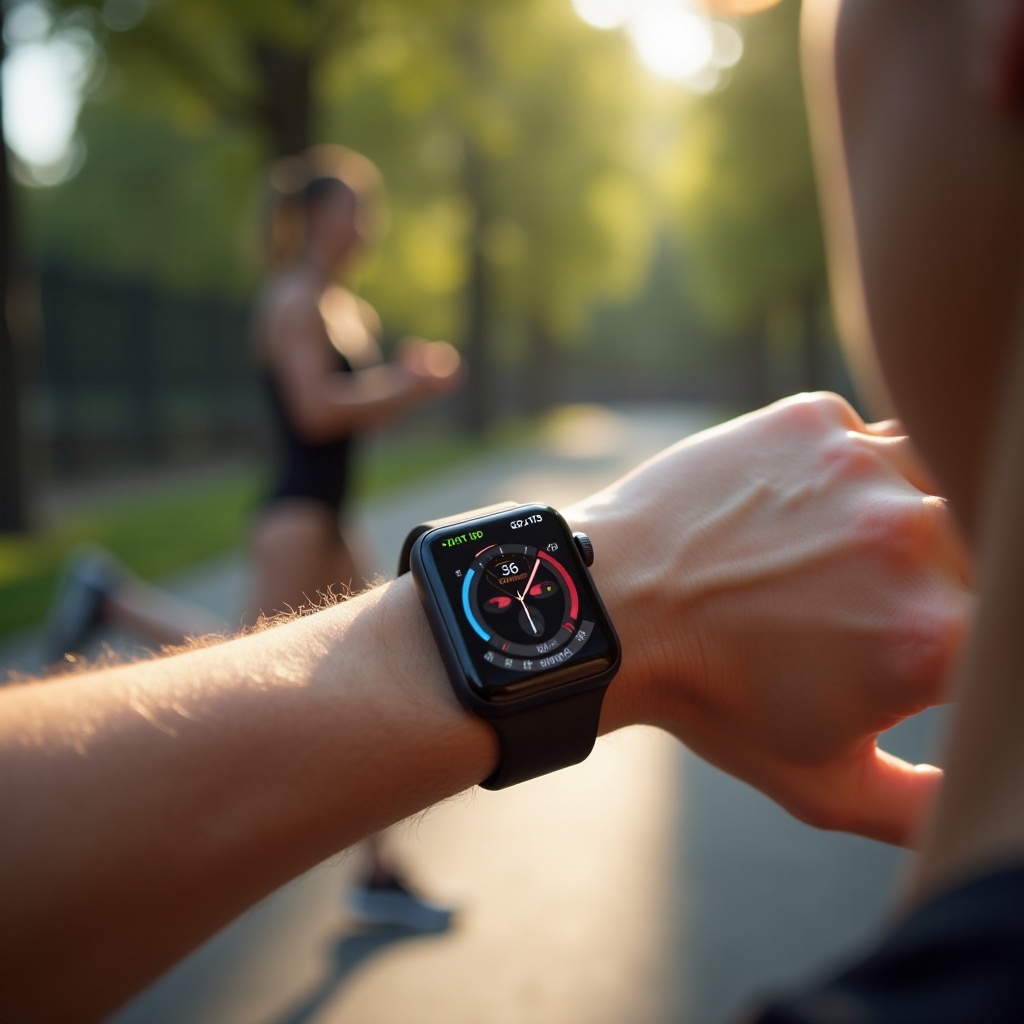
Leveraging Apple Support and Resources
When you face persistent issues, Apple’s robust support resources come in handy.
- Navigate the Apple Support Website: This site provides official documentation and solutions for common Apple Watch issues.
- Access Apple Community Forums: Online forums can offer solutions from fellow users who have experienced similar problems.
- Contact Apple Directly: For persistent issues, reaching out to Apple Support ensures personalized solutions.
With practical fixes and Apple’s support, you’re equipped to manage any tracking challenges effectively.
Conclusion
Consistently accurate fitness tracking on your Apple Watch supports your health goals and keeps you motivated. By following this guide, you can address and prevent the issues that cause missed workout recordings. Utilize the tips and resources provided to ensure your device reliably supports your active lifestyle.
Frequently Asked Questions
Why did my Apple Watch not record my workout?
Your Apple Watch might fail to record workouts due to low battery, incorrect settings, or outdated software, each affecting its tracking performance.
Can software updates improve workout tracking accuracy?
Yes, updating your Apple Watch regularly can fix bugs and introduce new features that enhance tracking accuracy, ensuring reliable performance.
How do I calibrate my Apple Watch for better tracking?
To calibrate, take your device outdoors with your iPhone, open the Workout app, select an outdoor walking workout, and walk for about 20 minutes.