How to Fix a Broken Chromebook Keyboard: Troubleshooting and Solutions
Introduction
Dealing with a broken Chromebook keyboard can be a major inconvenience, affecting everything from your work efficiency to simple daily tasks. Whether you need to send an important email, draft a document, or browse the web, a functional keyboard is essential. Fortunately, addressing the problem doesn’t have to be difficult. With some methodical troubleshooting and practical solutions, you can have your keyboard up and running again in no time.

Identifying the Problem
The first step in fixing your Chromebook keyboard is understanding the source of the problem. It’s crucial to distinguish between software issues and hardware failures. Start by observing the symptoms:
- Are there specific keys that don’t respond?
- Is the entire keyboard unresponsive?
- Do keystrokes appear with delay?
By aligning the symptoms with possible causes, you set the stage for targeted intervention. This distinction will guide you toward the most appropriate solutions, whether they’re software tweaks or hardware adjustments.
Common Software Fixes
Often, the root of keyboard malfunctions lies within software glitches. Addressing these can quickly get your keyboard back in working order:
- Restart Your Chromebook: Many issues are resolved with a simple reboot. Press the power button, select ‘Power off,’ wait a few seconds, and start the device again.
- Check for System Updates: Bugs can arise from outdated software. Navigate to ‘Settings,’ then ‘About Chrome OS,’ and ensure your system is up to date.
- Use Built-in Diagnostic Tools: Chromebooks include diagnostic utilities that can identify and sometimes fix software-related errors. Utilize these tools from the settings menu to perform an automatic check.
After trying these software solutions, if the problem persists, it may be necessary to address potential hardware issues.
Hardware Troubleshooting
Persistent keyboard issues often hint at underlying hardware problems. Here’s how you can examine these possibilities:
- Inspect the Keyboard for Physical Damage: Visually examine the keyboard for any signs of damage, such as missing keys or debris lodged under keycaps. Such physical obstructions can lead to non-responsive keys.
- Test with an External Keyboard: Plug in an external USB keyboard. If this works without issue, it indicates the problem is with your internal keyboard hardware.
Having determined that hardware is the issue, it’s time to consider whether you should conduct repairs yourself or seek expert help.

DIY Repairs vs. Professional Help
Determining when to fix your Chromebook yourself or when to engage a professional is crucial. Here’s a guide to help make that choice:
- Replacing Individual Keys: Should only a few keys require attention, ordering a key replacement kit can be a practical solution. Follow online guides specific to your model for precise instructions.
- Exploring Internal Repairs: For those who are technically inclined, opening your Chromebook to check cable connections or keyboard settings is possible. However, exercise caution to avoid voiding warranties or causing additional damage.
- When to Consult a Technician: If the problem affects the entire keyboard or seems beyond basic fixes, consulting a certified technician is a wise move. Professionals have the necessary tools to troubleshoot and address complex issues effectively.
Once your keyboard is back in working order, consider steps that can help prevent future malfunctions.
Preventative Measures
Keeping your keyboard in good shape involves regular maintenance. These preventive tips can help extend its lifespan:
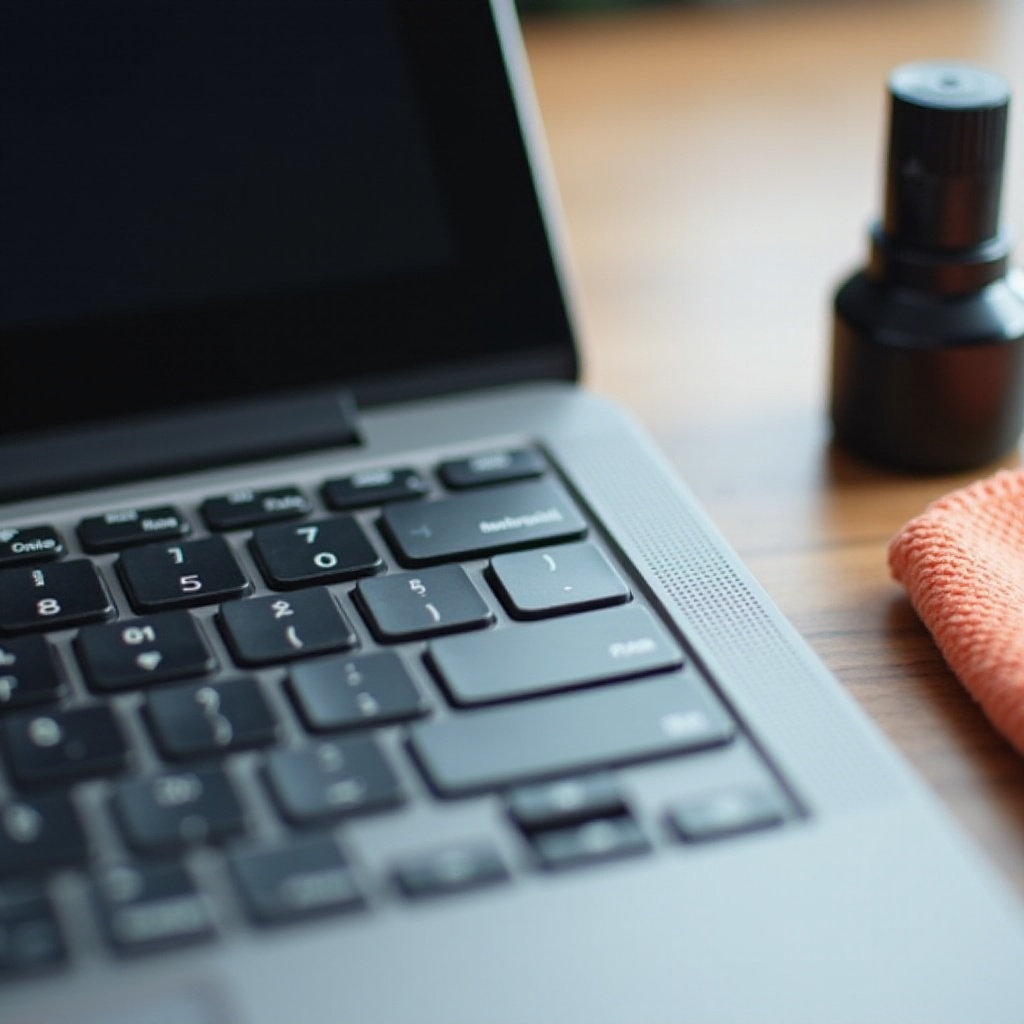
- Regular Cleaning and Maintenance: Periodically clean your keyboard to prevent debris accumulation. Use compressed air to clear out dust and a soft cloth for surface cleaning.
- Using Keyboard Covers: A silicone cover can prevent spills and physical damage while keeping dirt at bay.
- Avoiding Liquid Damage: Always keep beverages away from your Chromebook. Even small spills can cause serious internal damage.
By adopting these preventive practices, not only does your Chromebook keyboard benefit, but the overall longevity of your device is enhanced.
Conclusion
Facing a broken Chromebook keyboard can be daunting, but the resolution is often within reach. By systematically identifying whether the issue is software or hardware, you can apply the right fixes and restore your keyboard’s functionality. Whether you opt for DIY solutions or professional repairs, adhering to preventive measures will safeguard against future issues, ensuring your device remains in top condition.
Frequently Asked Questions
What should I do if only some keys on my Chromebook keyboard are not working?
Start by cleaning out debris under the keys. If the issue persists, consider using a key replacement kit.
Is it worth repairing a Chromebook keyboard, or should I replace the Chromebook?
For minor issues, repair might be sufficient. For extensive damage, consider the cost of repair versus replacement.
Can software problems cause a Chromebook keyboard to malfunction?
Yes, software glitches can lead to keyboard issues. Ensure your system is updated and use diagnostic tools to identify software-related errors.