How to Connect Your Laptop to Your TV Using a VGA Cable
Introduction
Linking your laptop to a television opens up a world of improved multimedia enjoyment. VGA remains a viable option for this connection, especially when dealing with technology that predates HDMI. In this comprehensive guide, we cover everything you need to know about linking your devices with a VGA cable, including the essential setup, adjustments, troubleshooting, and tips to ensure a smooth connection.
Understanding VGA Technology
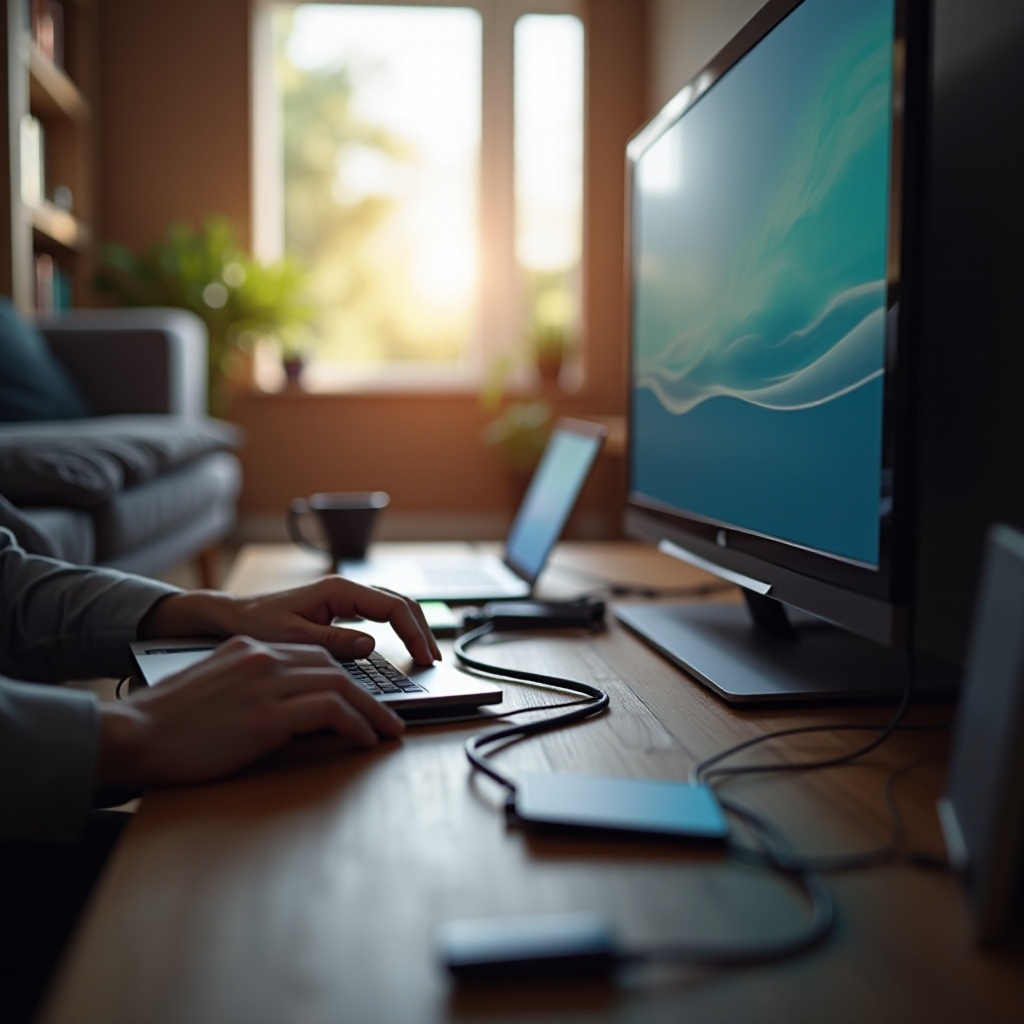
VGA, or Video Graphics Array, continues to serve as a robust analog connection for video output. Despite its age, it remains crucial in contexts where newer digital options are unavailable. It’s significant to comprehend its fundamentals before diving into connections.
- What is VGA?
VGA is an analog video connection featuring a 15-pin connector. It’s primarily used for video output from devices like laptops to screens, and it requires separate cabling for audio.
- Differences Between VGA and Modern Interfaces
Unlike HDMI and DisplayPort, which transmit both video and sound digitally, VGA carries only video signals. Although newer interfaces offer enhanced quality, VGA is still practical due to its compatibility with older equipment.
Understanding these basics helps you appreciate why you might choose VGA over other methods and prepares you for the setup process.
Benefits of Using VGA for Laptop-to-TV Connections
Opting for a VGA connection comes with its own advantages, particularly when planning your device setup.
- Compatibility with Older Devices
Many older laptops and TVs come with VGA ports, allowing for a straightforward connection without additional hardware adapters.
- Cost-Effectiveness
VGA cables are less expensive than HDMI cables, making them a suitable choice for budget-conscious users looking to leverage existing technology.
Knowing these benefits allows you to make informed decisions based on your equipment and budget.
Setting Up a VGA Connection
Establishing a VGA link between your laptop and TV involves a series of straightforward steps. Here’s what you need to do:
- Identifying Ports on Your Laptop and TV
Find the VGA ports on the devices. The port looks like a trapezoidal connector.
- Required Equipment and Cables
Acquire a VGA cable of the appropriate length and, if your TV requires it, an auxiliary cable for audio.
-
Initial Physical Connection Setup
-
Connect the VGA cable from your laptop’s port to the TV.
- If audio is required, link an auxiliary cable from the laptop to the TV.
With your physical setup secured, it’s time to configure your devices to recognize each other.
Configuring Laptop and TV Settings
To optimize the connection, you’ll need to adjust both your laptop and TV settings:
-
Adjusting Laptop Display Settings
-
Access your laptop’s display settings. For Windows, right-click the desktop and choose ‘Display settings’. For Macs, go to ‘System Preferences’ > ‘Displays’.
-
Select ‘Duplicate’ or ‘Extend display’. Adjust the resolution to match your TV’s capabilities.
-
Configuring TV to Accept VGA Input
-
Use your TV remote to switch to the VGA input source.
- Ensure your TV is set to receive the signal from your laptop.
These instructions enable your devices to ‘talk’ to each other effectively, providing you with the best possible display quality.
Troubleshooting Common VGA Issues
If you encounter issues, the following troubleshooting tips can help:
- No Signal or Poor Image Quality
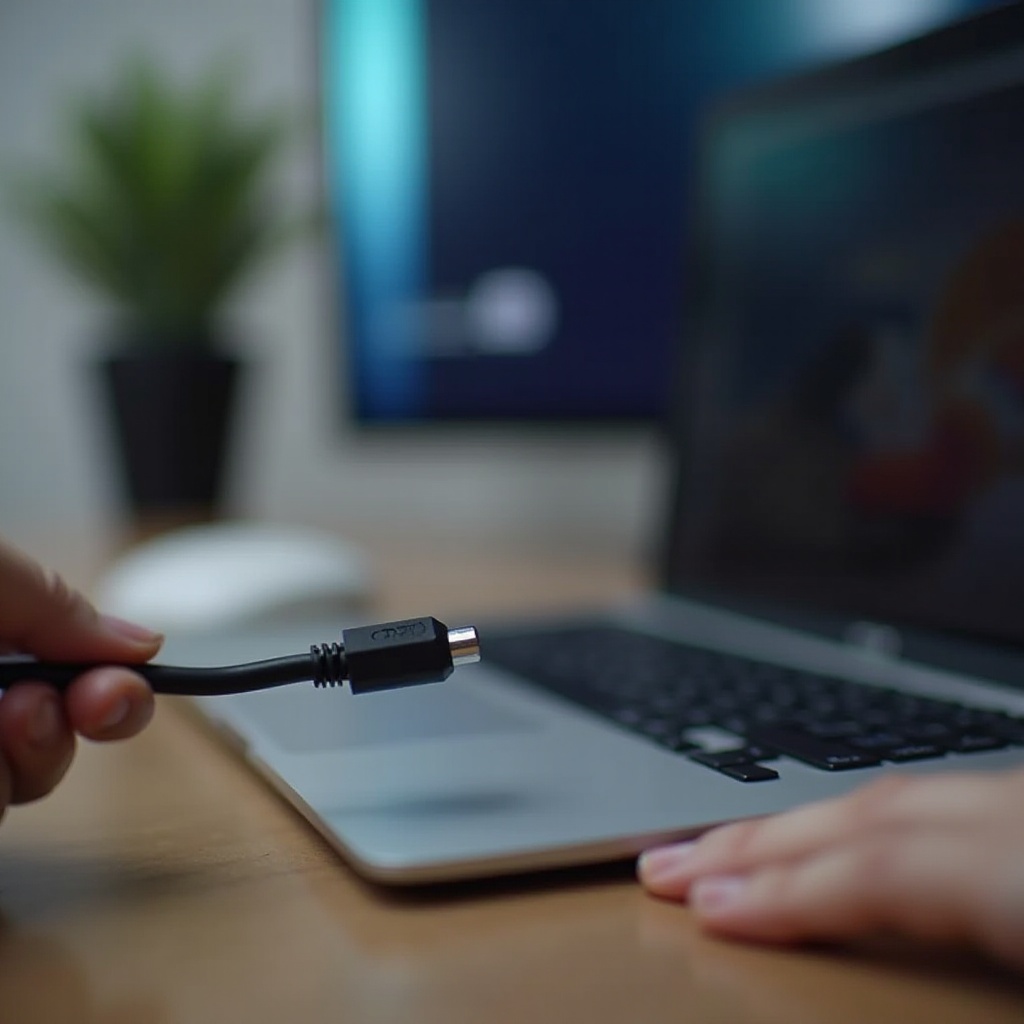
Confirm all cables are fit securely. Verify that your laptop is sending the correct resolution to the TV. Restart the laptop if necessary.
- Audio Connection Solutions
VGA does not carry audio, so ensure an audio cable is connected appropriately, or explore Bluetooth audio options.
- Resolution and Aspect Ratio Mismatches
Double-check that resolutions are aligned. Adjust through display settings on your laptop for the best visual clarity.
Use these solutions to address common problems and enhance your viewing experience.
Exploring Connection Alternatives
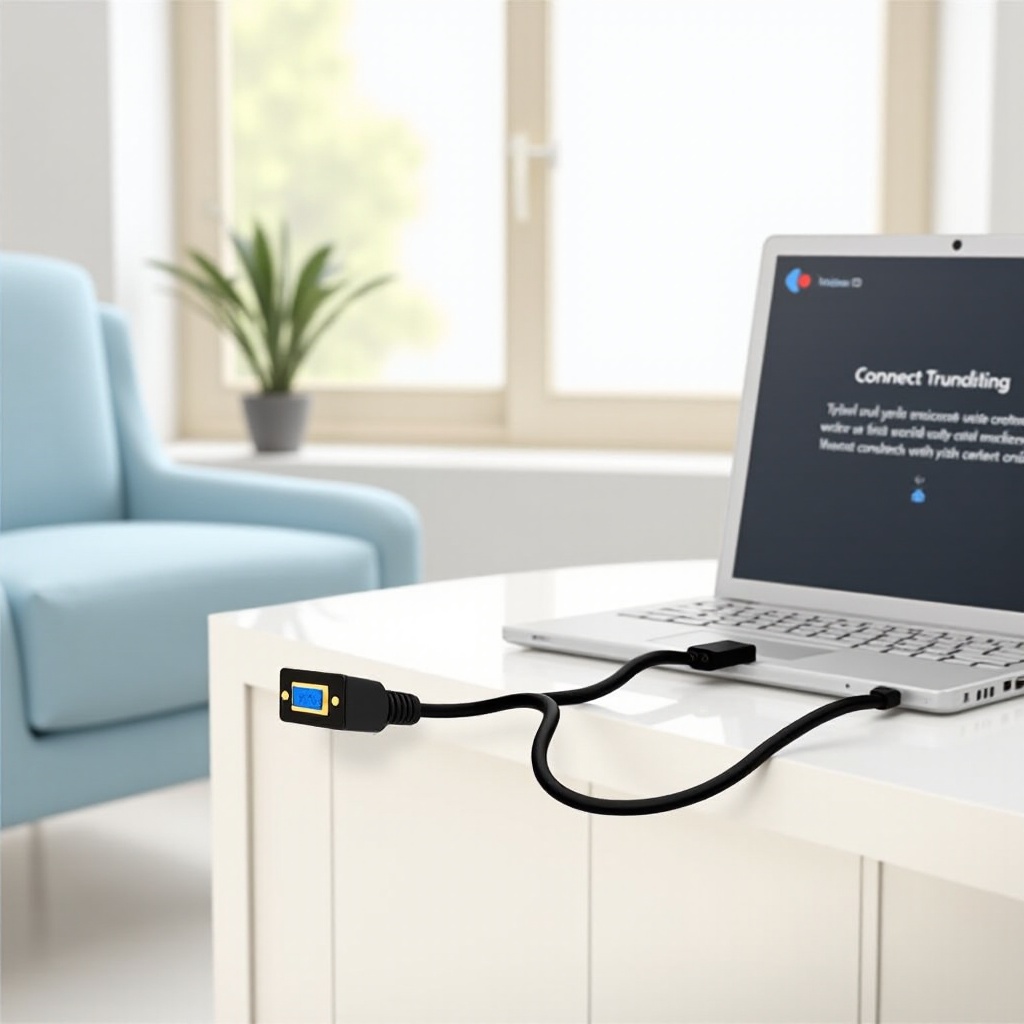
While VGA works well in numerous scenarios, it’s worth exploring other connection options:
- HDMI and DisplayPort Advantages
These connections offer digital transmission of both video and audio, enhancing quality and convenience over a single cable.
- Exploring Wireless Connection Options
Consider devices like Chromecast or wireless HDMI adapters for a cable-free setup that offers similar or superior transmission capabilities.
By understanding and potentially integrating these alternatives, you prepare your entertainment system for a future with evolving technology.
Conclusion
Choosing a VGA connection can breathe new life into older devices, offering a reliable and cost-effective means of expanding your digital world. By understanding the setup process and potential alternatives, you ensure an adaptable system capable of meeting your multimedia needs efficiently.
Frequently Asked Questions
Can I get audio through a VGA connection?
No, VGA only handles video. A separate audio cable or Bluetooth speakers are required.
How do I improve the picture quality on my TV?
Ensure both devices share compatible resolutions and cables are secure. Adjust settings as necessary for optimal quality.
Why is VGA still relevant in 2024?
VGA is useful for compatibility with older devices and its cost-effectiveness, allowing users to extend device lifespans.