How to Repair Computer Motherboard
Introduction
A malfunctioning motherboard can render your computer inoperative, leaving you feeling frustrated and helpless. Understanding how to identify, diagnose, and fix motherboard issues can save time and resources. This comprehensive guide outlines practical steps and essential tips for effectively repairing a computer motherboard. By following these guidelines, you can keep your device running smoothly and avoid common pitfalls.
Understanding Your Computer Motherboard
Before you embark on repairing your motherboard, it is crucial to understand its components and significance.
Key Components Overview
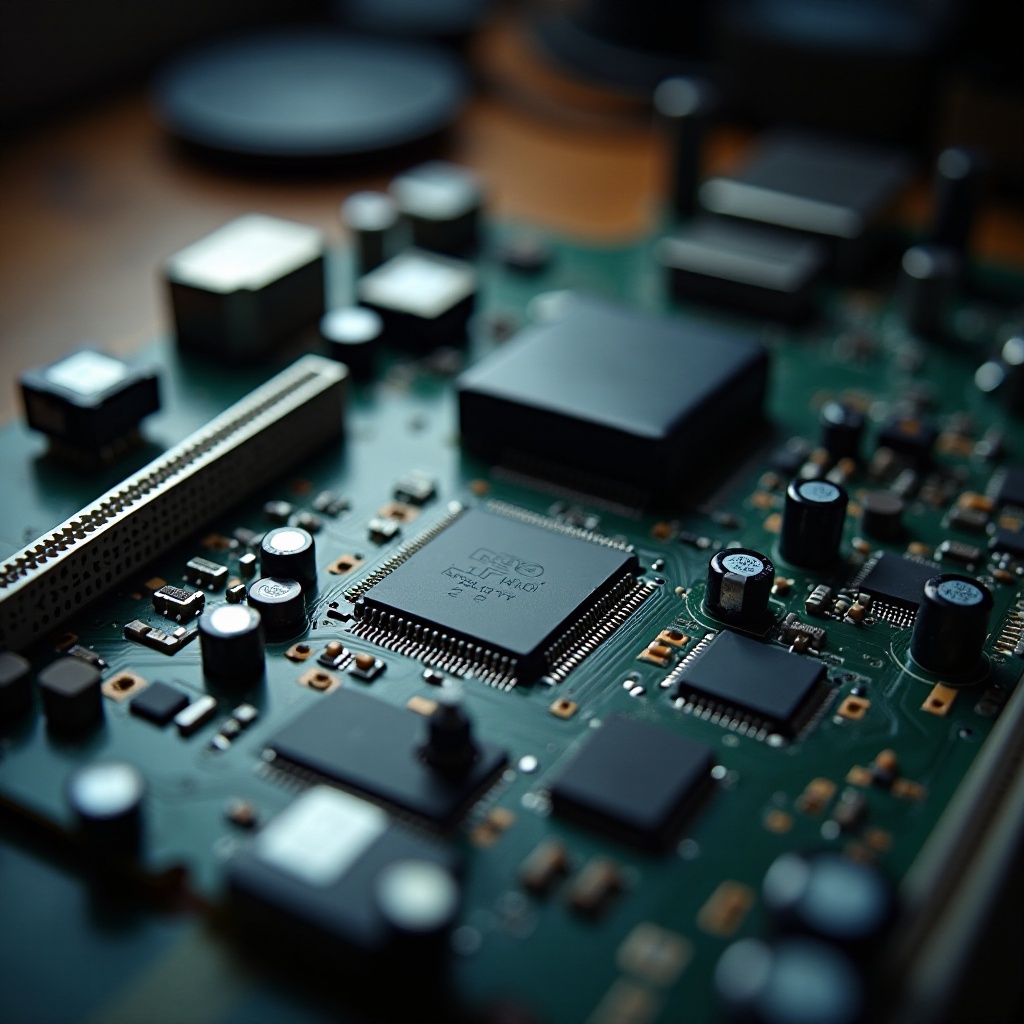
The motherboard is the central hub that connects all vital components of a computer, including the CPU socket, RAM slots, expansion slots, and power connectors. Having a clear understanding of each part’s function is essential for diagnosing and conducting effective repairs.
Common Signs of Failure
Recognizing early symptoms of motherboard failure, such as unexpected crashes, inability to boot, or erratic behavior, is key to addressing issues before they escalate. These signs often signal underlying problems that need immediate attention.
Preparing for Motherboard Repair
Preparation is fundamental to the repair process. Ensure you are well-equipped and knowledgeable before commencing repairs, which will reduce the risk of further damage.
Essential Tools Required
Gathering the right tools can make the repair process more efficient and less prone to error. Essential tools include:
– A set of screwdrivers (Phillips and flathead)
– An anti-static wrist strap to protect components
– Thermal paste for heat management
– A cleaning brush or compressed air to remove dust
Safety Precautions
Safety should always be a top priority when working with electronics. To protect both yourself and your computer components:
– Disconnect all power sources before starting any repair work
– Use an anti-static wrist strap to prevent electrostatic discharge that can damage delicate components
– Perform repairs on a clean, static-free surface to avoid contamination and additional issues
Diagnosing Motherboard Problems
Accurate diagnosis is crucial for successful repair. Determining the exact cause of a problem can guide you toward the correct solution.
Hardware Diagnosis
To identify hardware-related issues:
1. Conduct a visual examination of the motherboard for signs such as burnt areas or swollen capacitors.
2. Verify that all connectors and components are securely attached.
3. Test memory modules since faulty RAM can mimic motherboard issues.
Software Troubleshooting
Software anomalies can sometimes present as hardware problems. Make sure to:
– Update the BIOS to the latest version to ensure compatibility and solve potential errors.
– Update all software drivers to the current versions, as outdated drivers can contribute to motherboard-related issues.
Step-by-Step Repair Guide
Once you have accurately diagnosed the problem, follow these steps for repair.
Repairing Physical Damage
Addressing physical damage involves precision and care:
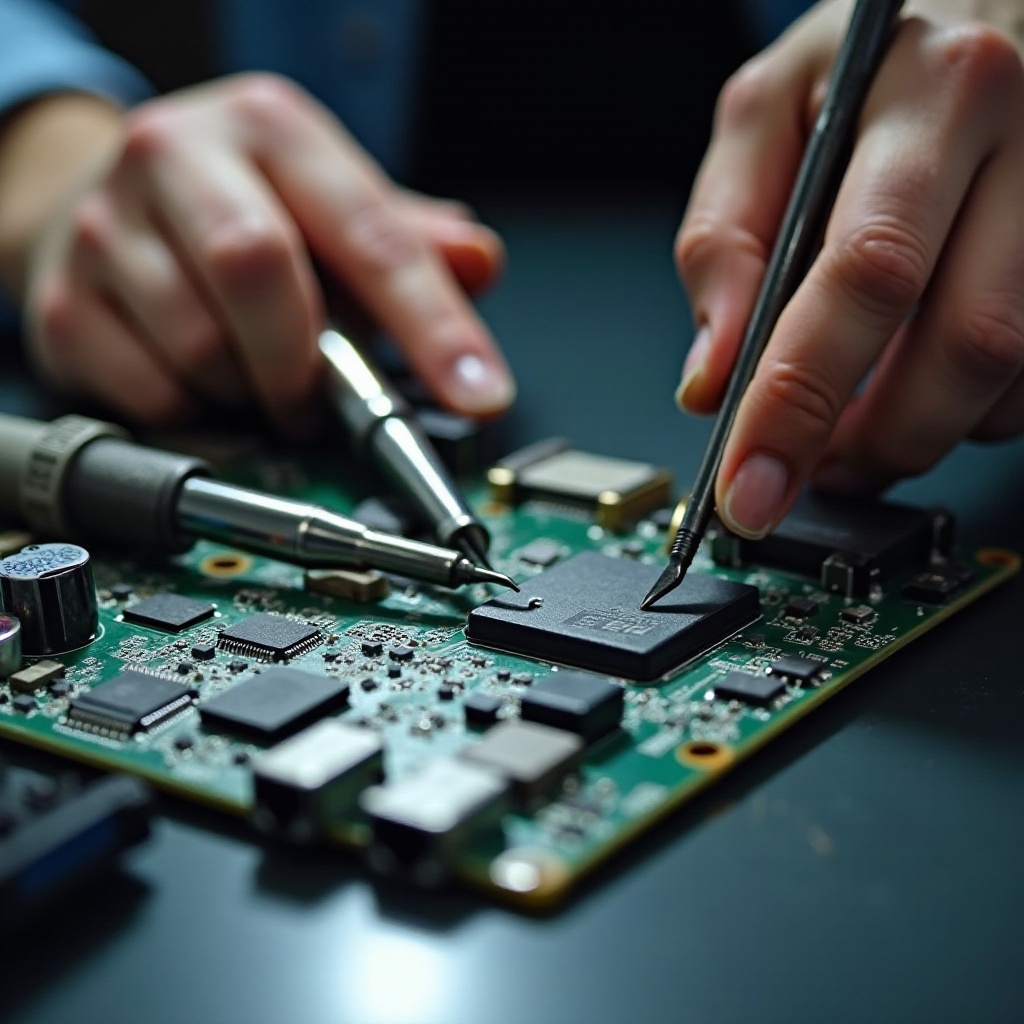
– Resolder any loose or broken connections on the board.
– Replace any visibly damaged components such as swollen capacitors with exact replacements found in compatible repair kits.
Fixing BIOS Issues
BIOS difficulties can impede your computer from functioning properly. To address these:
– Reset the BIOS by removing and reinstalling the CMOS battery to restore default settings.
– Update the BIOS firmware to correct errors and enhance performance.
Addressing Overheating
Overheating is a common cause of failure that requires prompt attention:
– Ensure the heat sink is correctly affixed and apply fresh thermal paste.
– Confirm that fans are operational and clean the interior to improve ventilation and prevent overheating.
When to Seek Professional Help
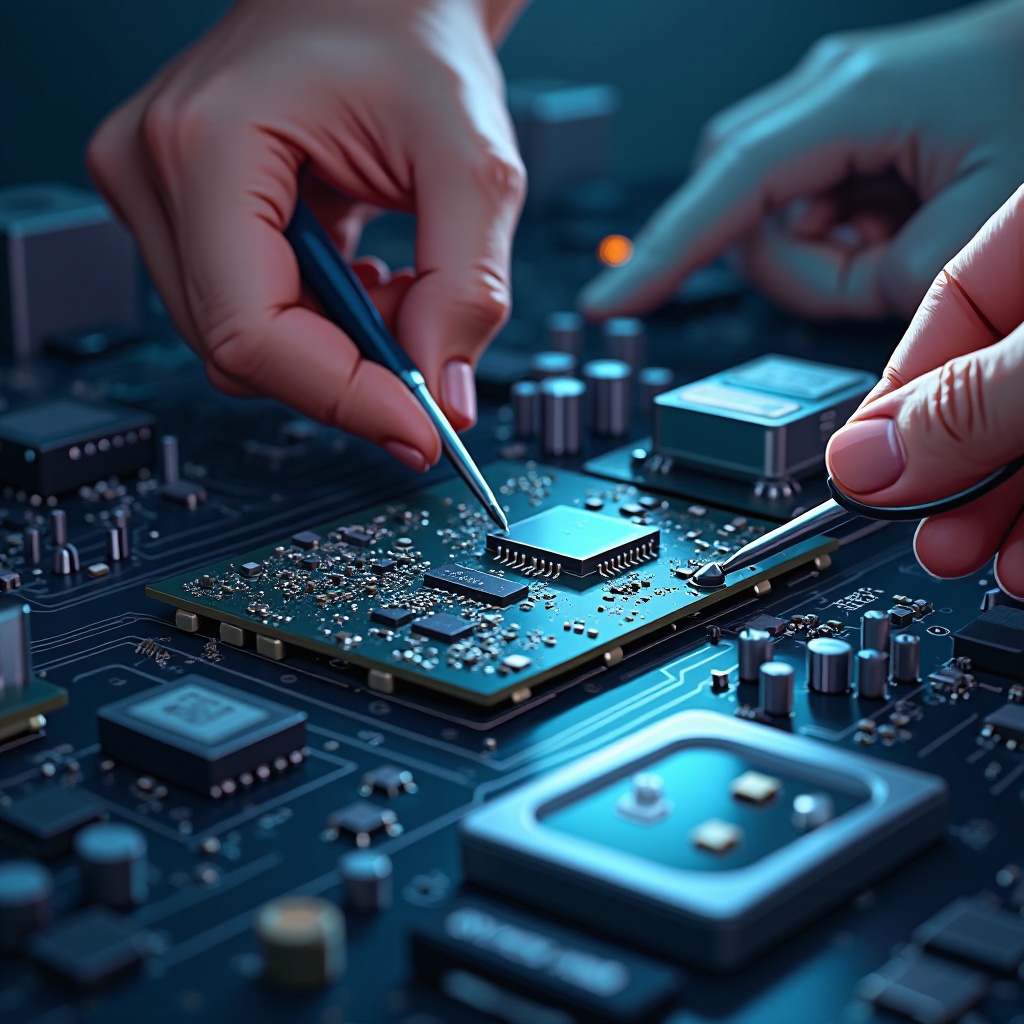
If the repair becomes too challenging or complex, professional assistance may be necessary.
Cost-Effectiveness
Consider whether the cost of repair outweighs purchasing a new motherboard. For specific damage or comprehensive diagnostics, professional repair services offer expertise and peace of mind.
Choosing a Reliable Service
Choosing the right service provider is crucial:
– Research multiple providers and read reviews to gauge quality and reliability.
– Ensure the provider offers guarantees on their repair work to ensure service satisfaction.
Tips for Maintaining a Healthy Motherboard
Regular upkeep can prevent common problems and extend the life of your motherboard.
Regular Cleaning
Keep your motherboard free from dust using compressed air or soft brushes. Regular cleaning improves airflow and reduces the risk of overheating, ensuring longevity.
Temperature Monitoring
Utilize software tools to monitor and regulate internal temperatures. Keeping your computer within safe operating temperatures is crucial for avoiding long-term damage.
Conclusion
Arming yourself with knowledge about how to repair your computer’s motherboard can save you both time and money. By understanding the components, recognizing signs of failure, and following a methodical repair process, you can effectively restore your device’s functionality. With regular maintenance, you can also prevent many issues from arising, ensuring your PC remains a reliable tool for years to come.
Frequently Asked Questions
What are the most common signs of motherboard damage?
Frequent crashes, failure to start, and unresponsive hardware are common indicators of motherboard issues.
Is it worth repairing an old motherboard?
Consider the cost and availability of replacements. Sometimes a new motherboard is a more cost-effective solution.
Can I repair a motherboard myself without technical expertise?
While possible, it’s not recommended without experience. Professional repair can ensure a precise and safe fix.